Signing in and the Hub
The dashboard, the site switcher, the interface language and quick add
After signing in, VMHub greets you with the VMHub dashboard — the Hub. The left panel is the same on every screen: the site switcher, the Create menu and search at the top, your site's content and the system screens below them, the interface language and your account at the bottom. This chapter shows how to find your way around it.
The screens in this chapter come from the VMHub demo, where you can look around yourself.
The site dashboard
The dashboard shows what is going on: how many pages and media the site has, the content edited last, drafts waiting to be finished, scheduled publishing and pages whose SEO still needs work. Every card links to its full list with View all.
What the dashboard shows depends on your role on the site: an admin sees more cards than an editor.
The site switcher
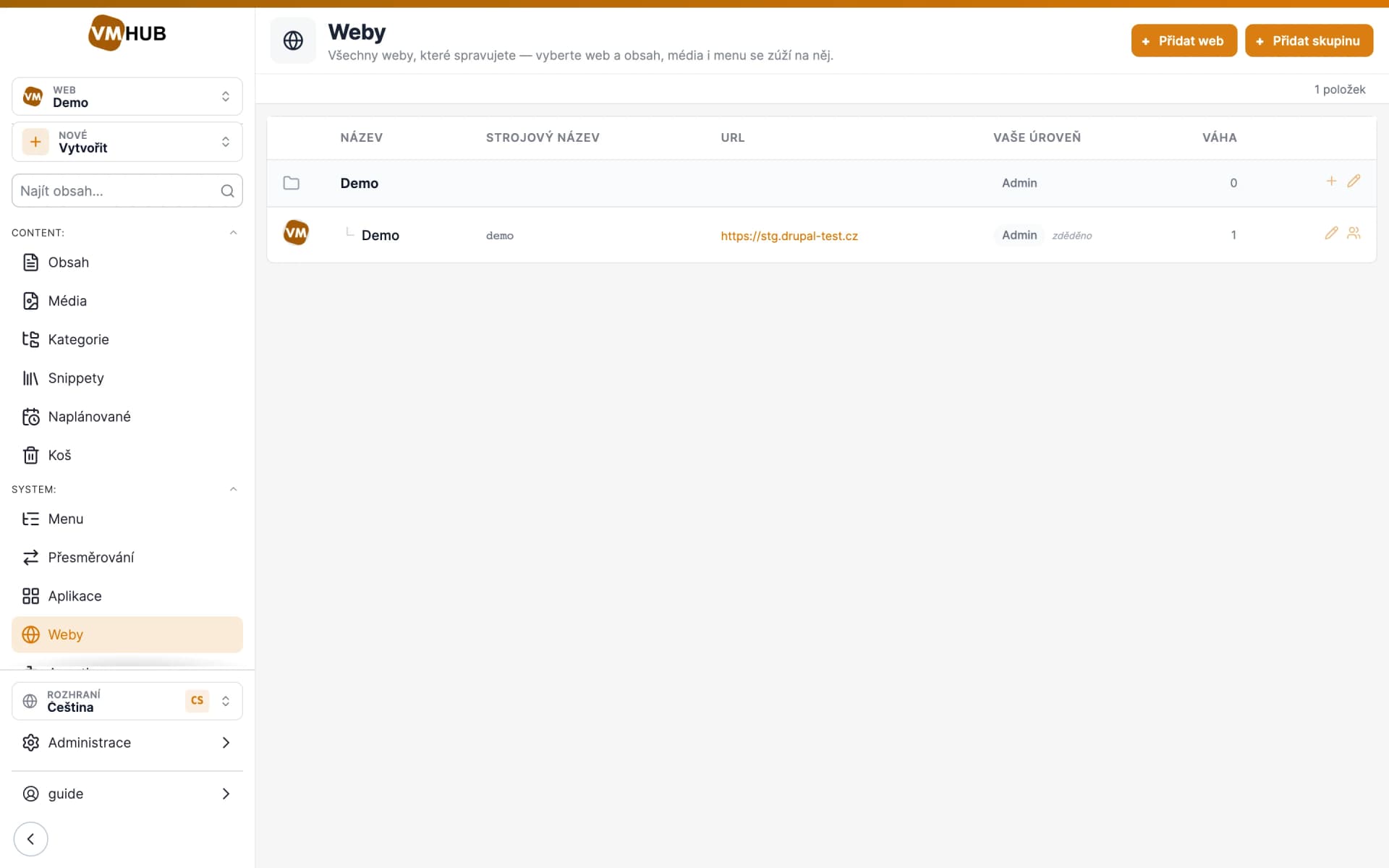
If you manage several sites, switch between them at the top of the left panel. Content, media, categories and menus then narrow down to the chosen site, and new content is assigned to it automatically.
The sites you can work on and your role on each are under Manage sites… — more in the Sites chapter.
Create anything
The Create menu under the site switcher adds pages, media, categories and users. Press C anywhere to open it.
Quick add asks only for what matters: the type, the title, the site and the category. The page is saved as a draft and its form opens straight away, so you carry on writing — that is what Pages and components is about.
Quick add: a new page
In the quick add window, pick the content type — a page, an article or a type one of the apps brings — and type the title. The site is pre-selected from the switcher; pick the category now or later in the form.
The content list
Content in the left panel opens the list of every page on the site. Filter it by type, status, language and SEO, or by a category or tag on the left. The icons in a row show the page, open its form or go straight to its components.
Select several pages to give them a category or tags at once, or to move them to the trash.
The interface language
The admin speaks Czech and English. Switch the interface language at the bottom of the left panel; it applies to you only and does not change the language of the content you are editing. How content is translated is covered in Translations.