Scheduling and revisions
Publishing at a set time, the calendar and the history of changes
A press release should go out on Monday at eight, an event should disappear the day after it ends. Scheduled publishing does it for you; and every saved change stays in the history as a revision.
The screens in this chapter come from the VMHub demo, where you can look around yourself.
Scheduling a page
In a page's form, open Scheduling options in the right panel and enter the date and time to publish, to unpublish, or both. The page stays a draft and publishes itself at that time; when unpublished, it moves to the state you pick in Unpublish state.
What is scheduled
Scheduled in the left panel lists every plan on your sites, the nearest first. A date in the past means the plan has not run yet. Times are in your time zone.
The calendar
Switch to Calendar to see the plans month by month. Click a day to open its list.
Revisions
The Revisions tab shows the page's history: who saved it and when, with the revision note. View or restore an older revision. A site admin can delete old revisions with Clean up history; the current one, the latest draft and anything scheduled stay.
A revision note
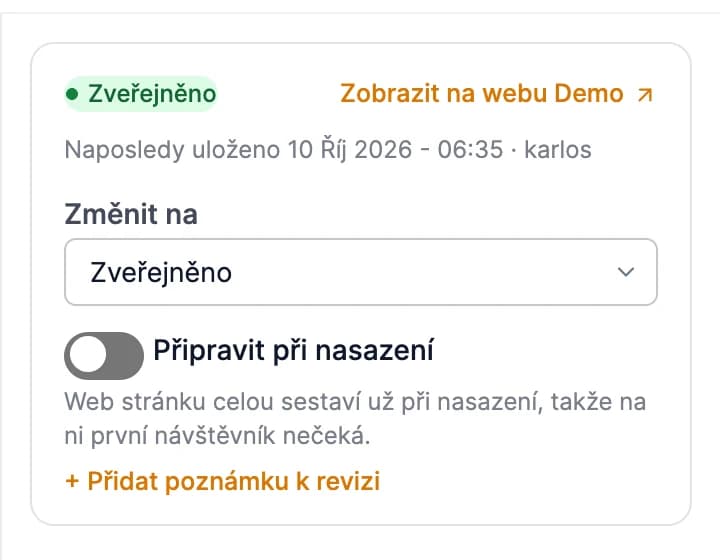
When saving, add a revision note in the right panel — a few words on what you changed. It makes the version you want to go back to easy to find in the history.